Troubleshooting guide
Nginx Proxy Manager WebSocket Connection Failed: Fix the Proxy Handshake
Category: Reverse Proxy & SSL
Your app loads through Nginx Proxy Manager, but its live WebSocket connection keeps closing at the proxy, and you want a controlled diagnosis before changing anything else.
Check WebSocket support on the proxy host
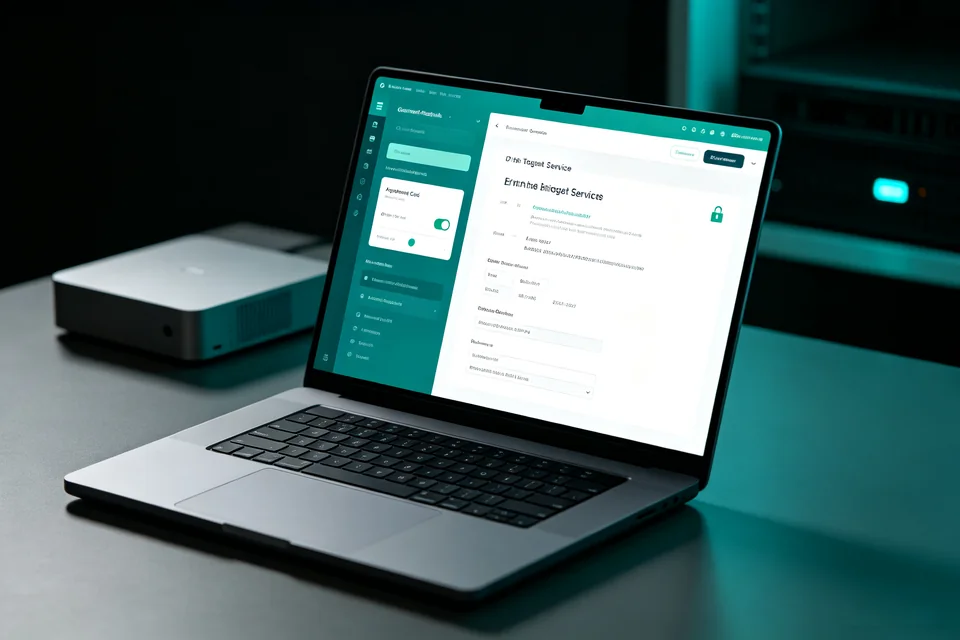
Open the proxy host in Nginx Proxy Manager and edit it. On the Details tab, confirm that the WebSockets Support toggle is enabled. If it is off, the proxy will not upgrade the connection, and the client will see the socket close immediately after the HTTP upgrade request. Turn it on and save.
Inspect the upstream headers
Still in the proxy host, open the Advanced tab. The upstream service must receive the standard upgrade headers. Add or confirm these lines in the custom Nginx configuration:
proxy_set_header Upgrade $http_upgrade; proxy_set_header Connection “upgrade”; proxy_set_header Host $host;
If the Connection header is set to close or omitted, the handshake fails even when WebSockets Support is on. Save the host after editing.
Verify the handshake
Open your browser developer tools, go to the Network tab, and filter for WS. Reload the app. A working connection shows status 101 Switching Protocols and stays open. A failed one shows a pending request that closes, often with no status. If you still see a close, check the upstream service logs for rejected upgrade requests; a backend that only listens on HTTP without upgrade support will close the socket regardless of proxy settings.
Rollback note
If the connection worsens after editing, revert the Advanced tab to its previous content and save, then re-enable WebSockets Support alone to isolate the change. If the issue persists after these checks, this nginx proxy manager websocket connection failed pattern usually points to the upstream, not the proxy.
Ask for help with your proxy host and upstream logs before making further changes.